Lightweight Python IDE with the tools you actually use.
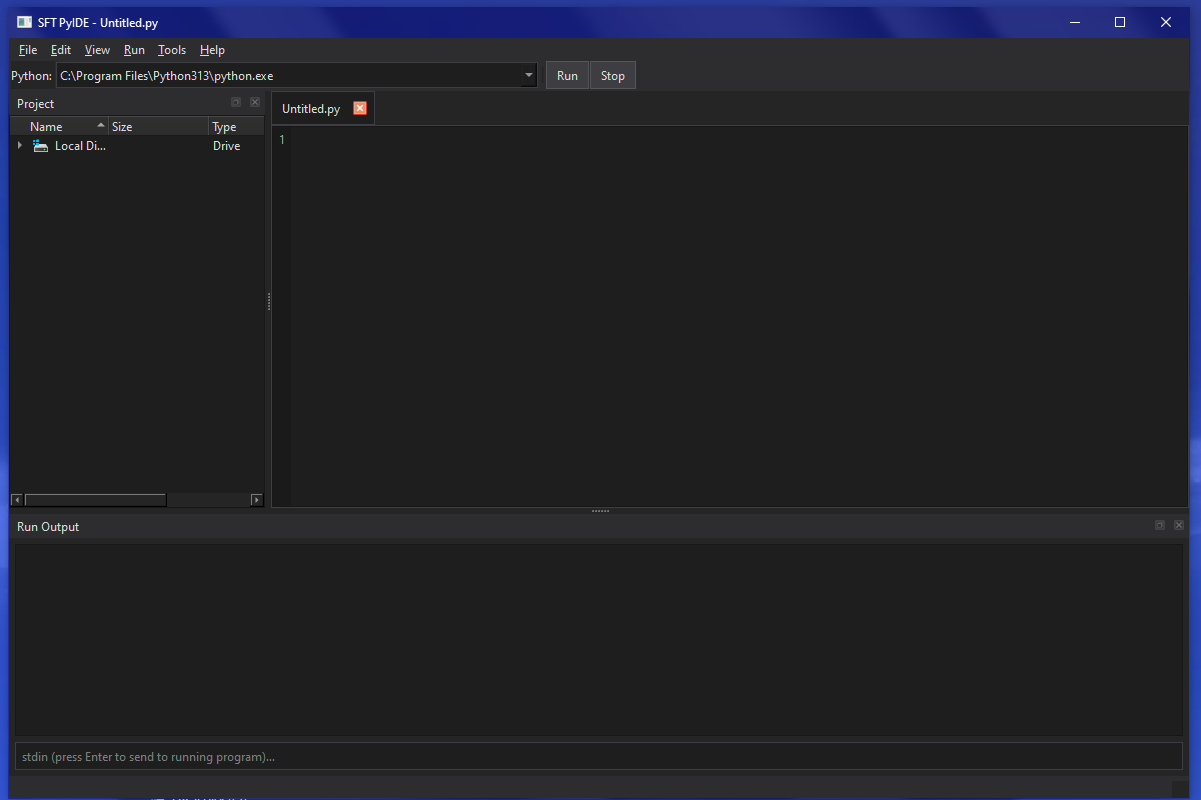
SFT PyIDE is a clean, tab-based Python IDE with a project file tree, recent files, autosave, interpreter selection, and two run modes (inside PyIDE or in a real external console).
Everything PyIDE has & can do
Full feature list (in plain English).
Tabbed code editor
Open multiple .py files at once. Unsaved tabs show a “*” indicator. Supports new/untitled files.
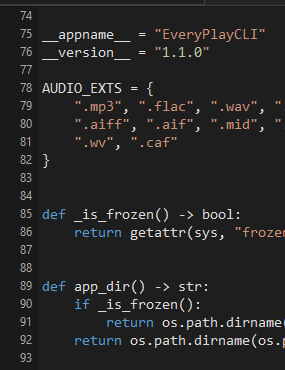
Line numbers
A line-number gutter makes it easy to track code locations and errors.
Find + replace
Ctrl+F and Ctrl+H, find next/prev, replace, replace all.
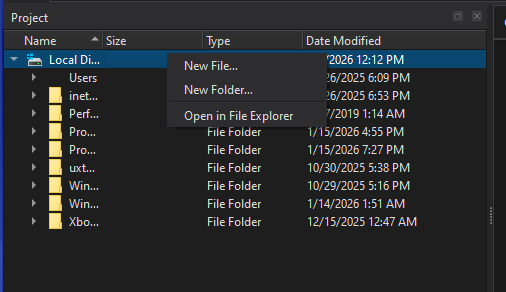
Project file manager (dockable)
Folder tree for a project root with right-click actions (new, rename, delete, open in Explorer). Hide/show anytime.
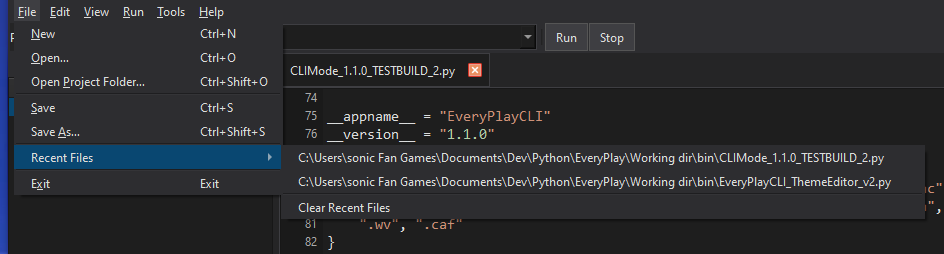
Recent files
File → Recent Files list with a configurable limit and “Clear Recent Files”.
Auto-save
Auto-saves open files on an interval (default 45 seconds). Can be disabled/changed. Saves only files with a path.
Dark mode + light mode
Dark mode by default, switch themes in Settings.
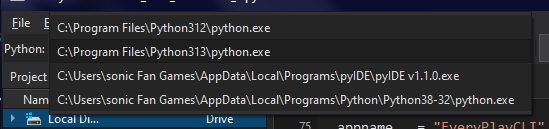
Python interpreter manager
Choose which Python runs your script. Add/remove/re-discover interpreter paths.
Run inside PyIDE
Output goes to the Run Output panel, includes stdin input, and a Stop button (Shift+F5).
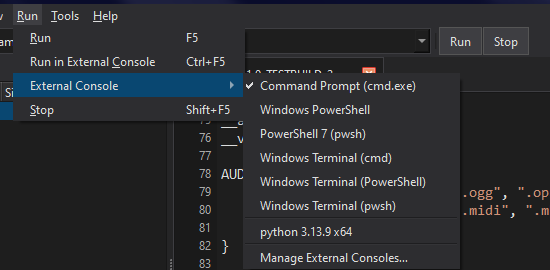
Run in external console
Best for CLI/curses apps. Choose cmd, PowerShell, pwsh, Windows Terminal variants, or custom consoles.
Autocomplete
Ctrl+Space completion. Optional Jedi support for smarter suggestions.
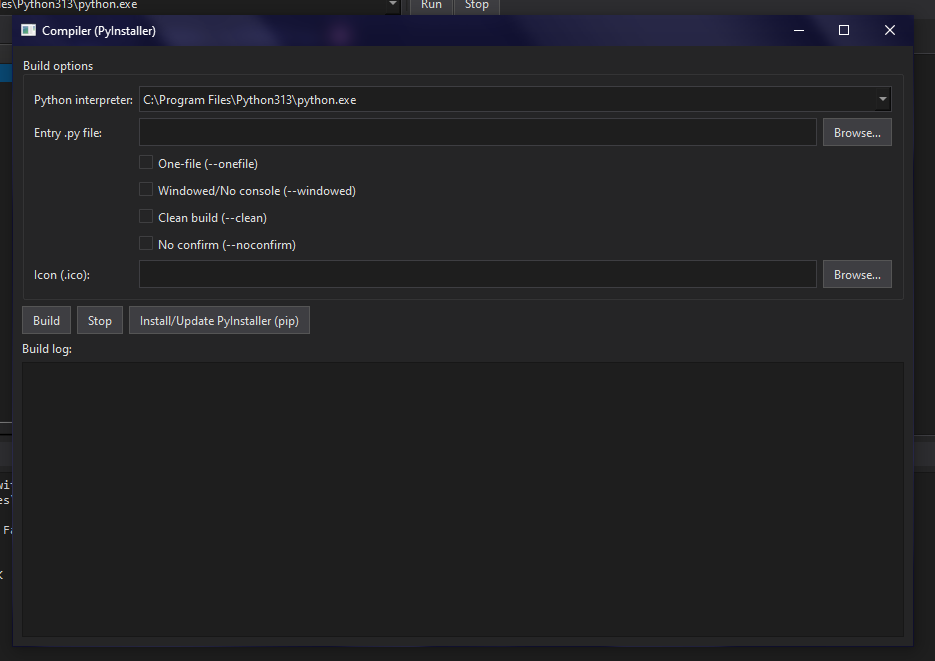
Syntax check + compiler window
Quick py_compile syntax check (Ctrl+K) and a built-in PyInstaller compiler window.
Screenshots
Click any image to zoom.


Quick Start (from source)
Install dependencies, then run the script.
- Optional: Jedi for smarter autocomplete:
pip install jedi - Optional: PyInstaller if you want to build EXEs:
pip install pyinstaller
Requirements
Recommended environment.
- Windows 10 or Windows 11
- At least one Python interpreter installed (python.exe)
- PySide6
- Optional: Windows Terminal for wt console options
Settings file
PyIDE stores settings/recent files in pyide_config.json.
- Tries the same folder as the EXE first
- If not writable (ex: Program Files), falls back to
%LOCALAPPDATA%\SFT_PyIDE\pyide_config.json
Keyboard shortcuts
FAQ
Common questions.
My program uses curses / needs a real console. What should I use?
Does PyIDE support multiple Python installs?
Where are my settings saved?
pyide_config.json. PyIDE tries next to the EXE first, then falls back to %LOCALAPPDATA%\SFT_PyIDE if needed.